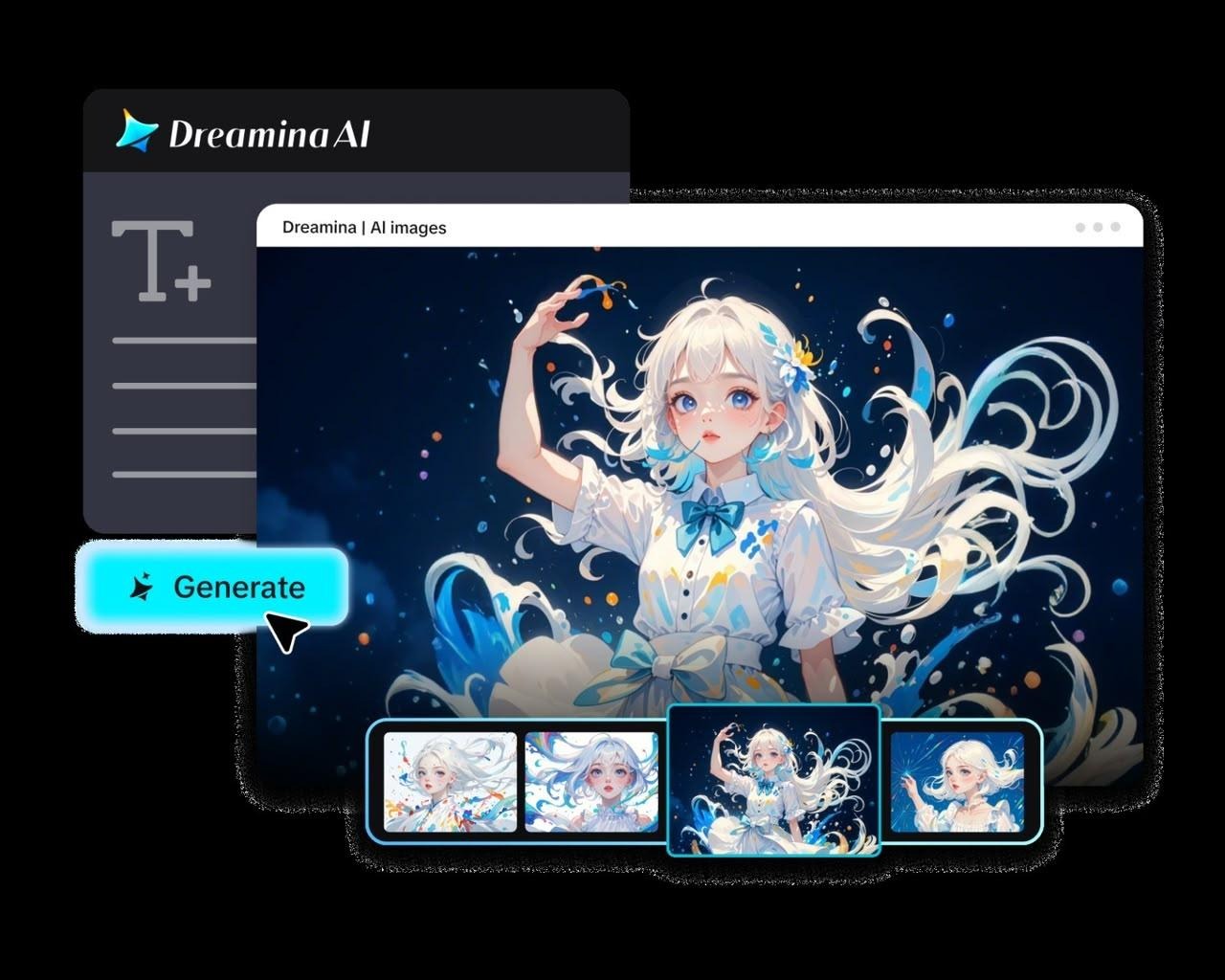
Creating a range of image concepts can take time if a single prompt has a number of creative possibilities. Four alternatives can be used to compare compositions, color palettes, subject styling, and visual atmosphere before choosing a final design. To make this exploration easier, Dreamina AI offers an Images to generate setting, where you can set the number of outputs. It has a standard image generator that allows you to have up to 4 images per generation, and an AI creative agent that provides up to 40 visual directions. These options can be used to meet various needs such as focused comparisons or more general creative exploration. The objective is to develop regular prompts, explore options, and choose images that meet certain criteria.
What Does Batch Image Generation Actually Mean?
Batch image generation refers to the generation of multiple images with a single generation setup, enabling multiple interpretations of a given prompt. Each result can be different compositions, different lighting, different details, or different style and direction, but the overall direction is the same. But simply creating more images does not necessarily mean that the resulting image resolution and quality will be higher. While minor variations are acceptable to keep the central idea, deliberate differences in the concepts should be clearly defined creative variables. Dreamina AI can bring up some options before you decide on a design. It is important to check each generated image individually for accuracy, consistency, and practicality.
Plan the Four Variations Before Clicking Generate
A successful batch begins with a single goal — whether that’s creating promotional art or looking at product presentation ideas. When prompts specify the subject, style, mood, composition, and critical visual needs, the AI image generator by Dreamina aids in this process. Maintain desired attributes and change elements like background, lighting, or color palette. Agree on how each picture will be judged before taking it. Do not mix unrelated concepts in the same batch, as it is more difficult to make meaningful comparisons when the instructions are inconsistent. Evaluation of alternative results is more likely to be strong when a focused prompt serves as a starting point.
Steps: How to Generate 4 Variations at Once With Dreamina?
Step 1: Enter your concept and write a prompt
- First, sign up or log in to Dreamina to start generating your batch of variations.
- Next, open the “Create” tab from the left menu and choose the “AI Image” option.
- Enter a detailed prompt that explains the image elements, theme, and concept behind every variation.
Step 2: Set four images and generate the batch
- Then, choose an image model from the options at the bottom of the dialogue box.
- Seedream, GPT Image, and Nano Banana are available, so choose according to your style preference.
- Add a reference image so Dreamina makes every variation look more precise and truly natural.
- Now, select a custom aspect ratio and resolution from the “Aspect ratio” and “Resolution” tabs.
- Open the “Images to generate” tab and enter 4 to create four variations at once. Use the “Dimensions” tab to set the custom size of every image in the batch.
- Add text to your variations easily whenever needed with the “Draw text on image” tab.
- Finally, click the “Generate” tab to begin the creation process for the whole batch together.
Step 3: Compare variations, refine, and export
- You will receive the requested number of drafts, so compare all variations side by side. If none of them work, choose “Edit prompt” or “Regenerate” to refine the generated results.
- Pick your favorite draft, and then upscale the generated image using the “Creative upscale” option.
- Next, use “Retouch” to correct, clean up, or enhance fine details of the selected image.
- Use “Remove” to erase anything from your image, or enlarge it with the “Expand” tab.
- You can transform your generated image into a video using the “Generate video” tab.
- Dreamina gives you complete freedom to edit each variation the way you like it best.
- Finally, click the “Download” tab at the top right to save the image file locally.
Six Rules for Getting More Useful Results From a Four-Image Batch
These six rules will help you to make each batch easier to evaluate and refine:
- Shared objective: One creative purpose will be determined, and the key subject requirements will be maintained throughout all four images.
- Prompt precision: Give instructions about the setting, lighting, composition, and visual style in concrete and specific terms.
- Controlled variation: Change some elements and not all variables when comparing alternative treatments.
- Reference alignment: Provide reference images and specify what visual features they want to have an impact on the results produced.
- Output suitability: Select aspect ratios and resolutions that match the output format and layout.
- Selection discipline: Review all four outputs, using the same criteria: relevance, accuracy, composition, and usability.
Use Batch Generation for Different Creative Applications
Dreamina AI batch generation is ideal for a number of creative processes. For social media creators, there is a comparison feature for compositions to create posts, thumbnails, and promotional graphics. Marketing teams can get a glimpse of campaign visuals without sacrificing a central message. Product designers can try out background settings, lighting treatments, and presentation styles. Illustrators can explore character appearances, environments, and narrative artwork. Poster designers can make comparisons between layouts to improve text placement and visual hierarchy. Presenters can discover visual concepts to explain ideas clearly. There is still a need to check for factual accuracy, brand consistency, and visual suitability with each application.
Compare the Four Outputs Without Losing Sight of the Brief
Compare each of the created images to the original requirements rather than just picking out images based on their appearance. Determine if the subject is communicated clearly and if composition, lighting, and visual hierarchy enhance the message. Look for distortion, artefacts, and inconsistencies in detail. Carefully read integrated text and logos, as generated lettering can have errors. Think about the size and placement of each image for publication. The most outstanding result may not be the most production-ready. Make sure that when you are making your final choice, you take into consideration elements of relevance, technical suitability, and usability.
Go Beyond Four Images With Dreamina’s AI Creative Agent
Dreamina’s AI creative agent provides an alternative way of discovering more visual possibilities. Provided platform information states it can produce up to 40 visual directions based on a single instruction. Conversational guidance can be used to create varying aesthetic representations such as film photography, anime art, cyberpunk visuals, fantasy drawings, marketing ideas, and posters, etc. This wider investigation is not the typical one-to-four-image batch size for the standard generator. But even a larger collection needs to be organized, scrutinized, and selected. Consider any generated directions as creative options and not necessarily as final assets.
Refine the Selected Image and Prepare It for Delivery
Select the image that best meets the original creative brief and then make specific edits. Refine with Retouch and Remove with Remove. Use Expand when the composition requires more space around it. If the destination calls for it, use Creative Upscale to increase resolution. Check the accuracy of the text, framing, visual consistency, and output dimensions before exporting. Download the final image and ensure that the file saved is suitable for the platform or production workflow.
Conclusion
Dreamina AI batch generation allows you to experiment with different interpretations without having to re-create the entire creative setup. It has a standard generator that can have up to four images per batch and a creative agent that has more exploration. Clear prompts, controlled variation, meaningful comparisons, and targeted editing are essential for achieving strong results. Creators can easily pick the appropriate visuals and stay focused on the ultimate design goal by going through each alternative and considering the original brief.